

Shopify Thank you page migration: the full checklist
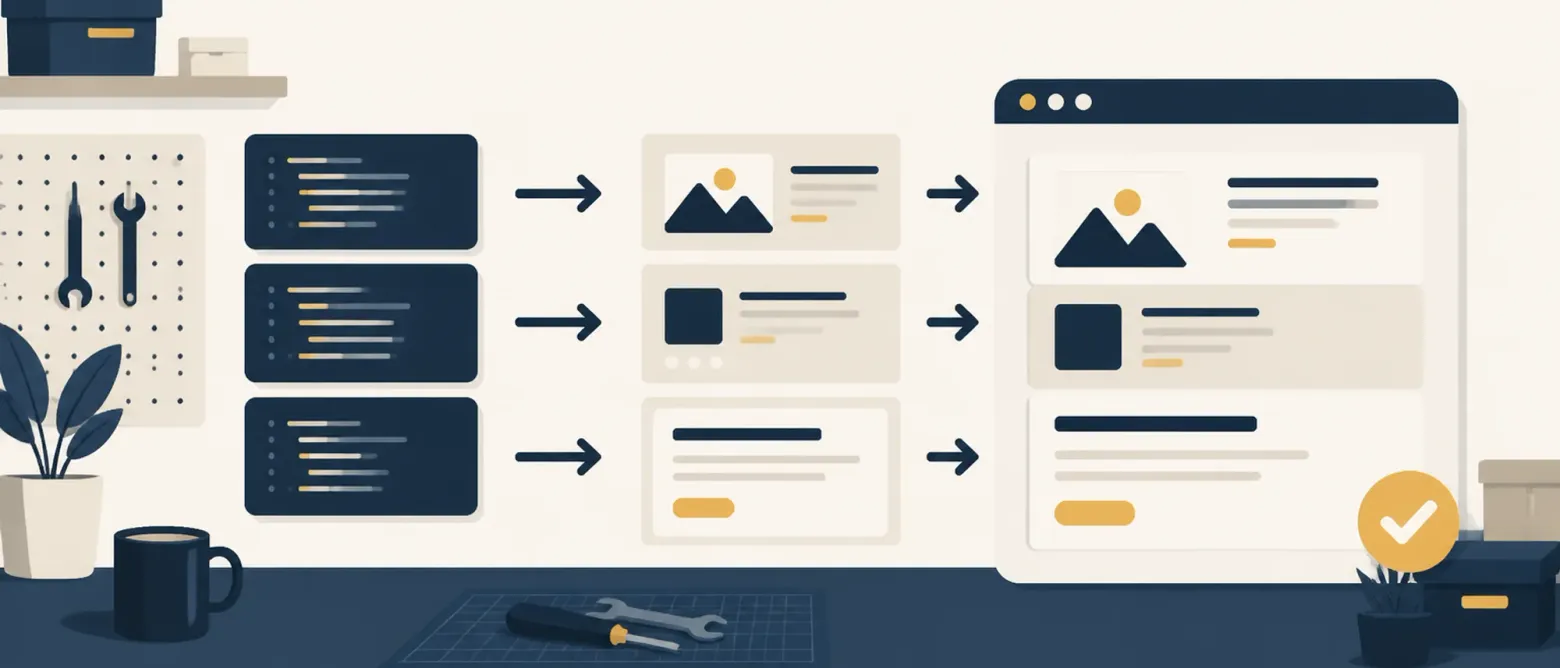
To migrate before Shopify's 26 August 2026 Thank you and Order status page deadline: list every script still running on those pages, map each one to a replacement Shopify supports — a checkout block, a web pixel, an app pixel, a built-in feature or an app — rebuild and test the upgraded pages, publish, then verify the data is actually arriving in each destination. That last step is the one that turns a hopeful migration into a checked one.
This checklist is for merchants on any non-Plus Shopify plan who have tracking, surveys or custom content on their post-purchase pages — the background and dates are in our news piece on the 26 August upgrade.
How do I find what is still running on those pages?
Audit before you touch anything. Three places hold the answer:
- The additional scripts box. In your Shopify admin, the Order status page scripts sit in the checkout settings. Copy everything out into a document — this is your inventory.
- Apps that write script tags. Any app that "just worked" on the order confirmation — surveys, referrals, affiliates, review requests — may have installed a script tag you never saw. List every app that touches post-purchase.
- Institutional memory. Tags pasted by a previous agency or freelancer are the classic blind spot. If nobody can say what a script does, that is an inventory line too, marked unknown.
For each line, record what it is, which platform it reports to, and who owns it. An unknown script is a risk to resolve, not a line to delete quietly.
What replaces each script?
Map every inventory line to one of the replacement paths Shopify documents — a checkout block, a web pixel, an app pixel, a built-in feature, an App Store app or a custom app — per its upgrade guidance (Shopify documentation).
| What you have today | Replacement | Where the work happens |
|---|---|---|
| GA4 or Google Ads conversion tag in additional scripts | A custom web pixel, or an app pixel from a channel app that supports the upgraded pages — verify per store | App settings, or the customer events editor |
| Meta pixel purchase event in additional scripts | A custom web pixel, or an app pixel from an app that supports the upgraded pages — verify per store | App settings, or the customer events editor |
| Other analytics or affiliate tags | A custom web pixel, or an app pixel where the vendor provides one (Shopify documentation) | Customer events editor |
| Post-purchase survey script | The survey app's checkout block | Checkout editor |
| Referral or loyalty widget | The app's checkout block, if the developer ships one | Checkout editor |
| Custom content on the Order status page | Content blocks on the upgraded page | Checkout editor |
| Anything with no replacement above | Check Shopify's built-in features, an App Store app or a custom app; otherwise contact the developer | — |
Two rules keep this honest. First, prefer an app's own integration over hand-rolling a pixel — the developer maintains it and keeps events from firing twice. Second, never assume an app has migrated itself: check its listing, and if the answer is unclear, ask the developer directly.
How do I test before publishing?
The upgrade flow lets you build and preview the upgraded pages before making them live, so use the window rather than publishing blind. Preview the Thank you and Order status pages, confirm every block you mapped is present and rendering, then place a test order end to end. Check the confirmation page a customer sees and the Order status page they return to later — both surfaces, not just the first one.
If a block is missing here, you can fix it before the pages go live. After 26 August, the same gap is a live tracking hole.
How do I verify the data is actually arriving?
Publishing is not the finish line — arrival of data is. For each destination in your mapping table, positively confirm receipt:
- GA4: watch your test order appear in the real-time and debug views with the right value and currency, then compare a full day of purchases against orders in Shopify.
- Google Ads and Meta: use each platform's event-testing screen to see the purchase event land once — not zero times, not twice. A doubled event from an old tag plus a new pixel corrupts your return figures as surely as a missing one.
- Surveys, referrals, reviews: confirm a response, referral link or request actually fires for the test order in the app's own dashboard.
Then reconcile daily for the first week: orders in Shopify against conversions in each platform. Matching counts are the proof; a zero on any line means a gap, not a quiet day. If your measurement has never been set up rigorously enough to reconcile like this, that is the underlying job — it is exactly the analytics and tracking setup discipline that makes every later ad decision trustworthy, and the same data hygiene that pays off in how stores get found in AI-led shopping.
The checklist in one place
Thank you page migration checklist
Get the migration done and proven
How long the migration takes depends on how much is in the box and which apps are involved. The value is in the last step — knowing, rather than hoping, that your conversion data survived the move.
Get the migration done and proven
We will audit your post-purchase pages, rebuild the tracking on the upgraded surfaces and reconcile the data afterwards, so you are not relying on hope that the data survived 26 August.
Frequently asked questions
Can I keep using additional scripts if I never upgrade?
No. 26 August 2026 is the deadline for stores not on Plus, and Shopify's guide says stores reverted to the old pages and not upgraded again before it will be auto-upgraded. Treat additional scripts and script tags on those pages as no longer running from that point. Upgrading early is not optional extra work — it is the same work done on your schedule, with time to test, instead of on Shopify's.
Do I need a developer for this migration?
Often not. Conversion tracking usually moves to an app's built-in integration or a custom web pixel, and surveys or widgets move to their app's checkout block — reinstalls and settings work rather than code. You need development help when a script was genuinely custom, when no app replacement exists, or when nobody can say what a legacy script does.
How do I know my tracking still works after publishing?
Place a real test order and follow it into each destination: the GA4 real-time and debug views, the Meta Events Manager test-events screen, and any survey or referral dashboard. Then compare a full day of orders against reported conversions. Matching counts, single un-duplicated events and correct order values are the proof — publishing without that check is how gaps survive unnoticed.
What about scripts that have no obvious replacement?
Shopify's guidance is to contact the app's developer or install an alternative that supports the upgraded pages. Do not assume a script tag keeps working after the upgrade; verify per app rather than after auto-upgrade, and do not leave the question open past the deadline — if the developer has no answer, migrating to an app that has one is the safer path.
Related reading
The total cost of running a Shopify store in the UK
What a UK Shopify store really costs each month in 2026: plan fees, card rates, the third-party transaction fee, apps, and a worked example to copy.
11 August 2026 7 min read

Shopify Thank you page upgrade: what stops on 26 August
Shopify's Thank you and Order status pages must be upgraded by 26 August 2026. What stops running, what replaces it, and how to migrate in time.
9 August 2026 5 min read

Shopify Scripts stop on 30 June: move to Functions now
Legacy Shopify Scripts stop running on 30 June 2026, with no warning at checkout. What breaks, who is affected, and how to migrate to Functions in time.
25 June 2026 5 min read